

🎯 TL;DR
Moving your development into Dev Containers offers incredible flexibility and isolation, but it breaks the standard “WSL mount” configuration for 1Password if you are working with Dev Containers created inside WSL. This guide shows you how to bridge the 1Password SSH agent from Windows into your containers using a network socket, ensuring your biometric Git signing works everywhere, without leaking private keys
Choose your path:
- 🚀 Quick start (10 min) - Jump straight to the bridge implementation
- 👀 See results (2 min) - What “Verified” looks like in the terminal
- 🧠 How it works (10 min) - Understanding the npiperelay socket bridge
✨ Why This Matters (30 Seconds)
Modern development on Windows has reached a “sweet spot”: we get the native Linux performance of WSL2 combined with the clean, reproducible isolation of Dev Containers. However, this multi-layered architecture often leaves our security credentials stranded.
By bridging 1Password into this stack, you leverage the biometric hardware of your Windows machine (Windows Hello) to authenticate inside isolated Linux environments. You gain the flexibility of a containerized workflow without the risk of scattering private keys across various virtual filesystems.
“The best security is the one that’s so easy you actually use it.”
💡 The Problem (In 60 Seconds)
If you are working strictly in WSL2, you might be tempted to simply point your .gitconfig to the Windows 1Password binary via the /mnt/c/ mount. While this “works” on the surface, it creates a brittle setup that breaks the moment you move toward a more modern, containerized workflow.
The challenge:
- 📝 The “Mount” Trap: Referencing
op-ssh-sign.exedirectly in your WSL.gitconfigworks locally, but that path is non-existent inside a Dev Container. - 🔍 Dev Container Silos: Containers are isolated by design; they don’t have access to your Windows host’s filesystem mounts or its Named Pipes.
- 🏢 Path Inconsistency: Different dev environments have different mount points, making hardcoded paths a maintenance nightmare
✅ The Solution
By using socat and npiperelay, we create a “wormhole” (a Unix socket) between your Linux environment and the Windows 1Password agent.
What you get:
- ✅ Biometric Auth: Sign commits and push to GitHub, GitLab, or Azure DevOps using Windows Hello.
- ✅ Centralized Vault: No private keys stored in
~/.ssh/on Linux. - ✅ Vault Isolation: Configure 1Password to only share specific keys (e.g., your Work vault) with the agent.
- ✅ Universal Config: The same Git configuration works on Windows, WSL, and inside any Dev Container.
🏗️ System Architecture
To understand how the bridge functions, it’s helpful to visualize the physical layering of the tools.
graph TD
    subgraph Windows_Host [Windows 11 Host]
        OP[1Password App + SSH Agent]
        WH[Windows Hello / Biometrics]
        PIPE["//./pipe/openssh-ssh-agent"]
        NPI[npiperelay.exe]

        OP --- WH
        OP --- PIPE
    end

    subgraph WSL_Environment [WSL 2 / Linux]
        SOC[socat listener]
        SOCK["/tmp/1password-agent.sock"]

        SOC --- NPI
        SOC --- SOCK
    end

    subgraph Docker_Container [VS Code Dev Container]
        GIT[Git / SSH Client]
        EVAR["ENV: SSH_AUTH_SOCK"]

        GIT --- EVAR
        EVAR --- SOCK
    end

    PIPE <==> NPI
🚀 Quick Start
Prerequisites
- Git for Windows installed and you have configured your global user name and email ➡️
- 1Password 8+ for Windows (with Windows Hello configured).
- WSL 2 with
systemdenabled. If you have installed Ubuntu via thewsl --installcommand, you will have systemd enabled by default, otherwise you can follow the following instructions official documentation ➡️ . npiperelay.exedownloaded and added to your Windows%PATH%. You can find the instructions in the official repo of npiperelay ➡️ or download the release ➡️ and unzip it, just make sure that it’s located inside your Windows%PATH%. In this tutorial we will create abinfolder inside our Windows home folder and we will extract the filenpiperelay.exefrom the release zip in thebinfolder.
Step 1: Configure the Windows Host
In 1Password, go to Settings > Developer and check Use the 1Password SSH agent. Follow the official 1Password guide ➡️
Security Tip: Under the agent settings, you can restrict access to specific vaults to ensure personal keys aren’t exposed to your dev environment. You can follow the official Agent config file ➡️ .
Open a Windows PowerShell and verify the agent is working:
ssh-add -l
If you see your keys, the host layer is ready.
Step 2: Create the WSL Bridge
We will now set up the bridge inside WSL. Follow these steps sequentially:
Install Dependencies Ensure your WSL environment has socat installed to handle the socket relay.
sudo apt update && sudo apt install socat -y
Prepare the Systemd Directory Create the local user directory for systemd services if it doesn’t already exist.
mkdir -p ~/.config/systemd/user/
Create the Bridge Service Create the service file. This service will automatically start the bridge whenever you log into WSL. Replace [username] with your actual Windows username.
cat <<EOT > ~/.config/systemd/user/1password-ssh-agent.service
[Unit]
Description=Bridge 1Password SSH Agent from Windows

[Service]
Type=simple
ExecStart=/usr/bin/socat -d -d UNIX-LISTEN:"/tmp/1password-agent.sock",fork EXEC:"/mnt/c/Users/[username]/bin/npiperelay.exe -ei -s //./pipe/openssh-ssh-agent",nofork
ExecStop=rm -f /tmp/1password-agent.sock
Restart=Always

[Install]
WantedBy=default.target
EOT
Enable and Start the Service Reload the systemd manager, then enable and start the bridge immediately.
systemctl --user daemon-reload
systemctl --user enable --now 1password-ssh-agent.service
Verify the Socket Confirm that the bridge service has successfully created the Unix socket.
ls -la /tmp/1password-agent.sock
Export Environment Variable for ssh-add and Git to find the bridge, you must set the SSH_AUTH_SOCK environment variable in your shell profile (~/.bashrc or ~/.zshrc).
You can append the variable automatically using the command below:
# This appends the export line safely to the end of your profile
echo 'export SSH_AUTH_SOCK=/tmp/1password-agent.sock' >> ~/.bashrc
Alternatively, manually add this line to the end of your profile file:
export SSH_AUTH_SOCK=/tmp/1password-agent.sock
Finally, reload your profile:
# For Bashbash
source ~/.bashrc

# For Zsh
source ~/.zshrc
Step 3: Configure Git Signing & Verification
For Git to sign and verify signatures locally (not just on GitHub), you need to configure an “Allowed Signers” file and ensure your signing key matches what 1Password provides.
3.1 Match your Signing Key Run ssh-add -L in WSL and copy the public key string (e.g., ssh-ed25519 AAA...). This string must match your Git config for signing to work.
git config --global gpg.format ssh
git config --global user.signingkey "YOUR_SSH_ED25519_PUBLIC_KEY_STRING"
git config --global commit.gpgsign true
3.2 Create Allowed Signers File This allows Git to verify your own signatures locally. Replace the email and key with your own.
# Add yourself to the allowed signers
echo "$(git config --global user.email) YOUR_SSH_ED25519_PUBLIC_KEY_STRING" > ~/.ssh/allowed_signers
git config --global gpg.ssh.allowedSignersFile ~/.ssh/allowed_signers
3.3 Configure Agent Forwarding
Create the file $HOME/.ssh/config and set the following configuration:
Host *
  ForwardAgent yes
  IdentityAgent /tmp/1password-agent.sock
🧠 How It Works (Deep Dive)
Authentication Flow
sequenceDiagram
    participant DC as Dev Container
    participant WSL as WSL (Linux)
    participant NP as npiperelay.exe
    participant OP as 1Password Agent (Windows)

    DC->>WSL: Git request (via /tmp/1password-agent.sock)
    WSL->>WSL: socat listener receives request
    WSL->>NP: Stream request to bridge
    NP->>OP: Write to //./pipe/openssh-ssh-agent
    Note over OP: Prompt Biometric Auth (Windows Hello)
    OP-->>NP: Return Signed Payload
    NP-->>WSL: Stream back to socket
    WSL-->>DC: Return result to Git
📊 Results & Troubleshooting
Verifying Results
To check if your setup is signing and verifying correctly, create a commit and then run:
git log --show-signature
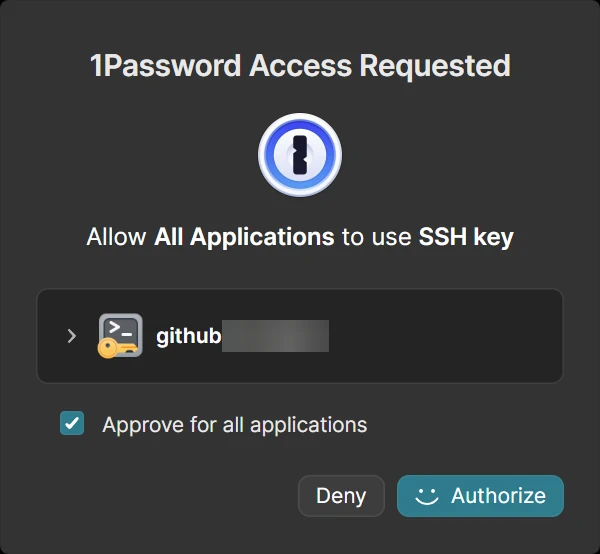
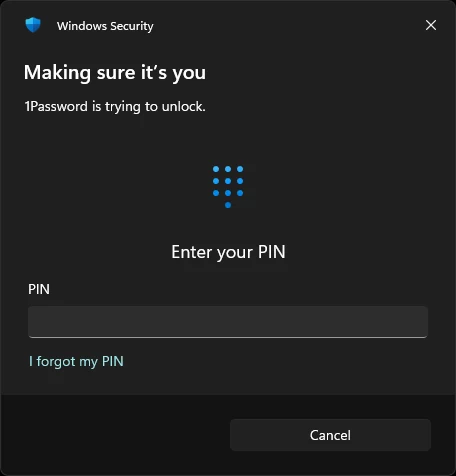
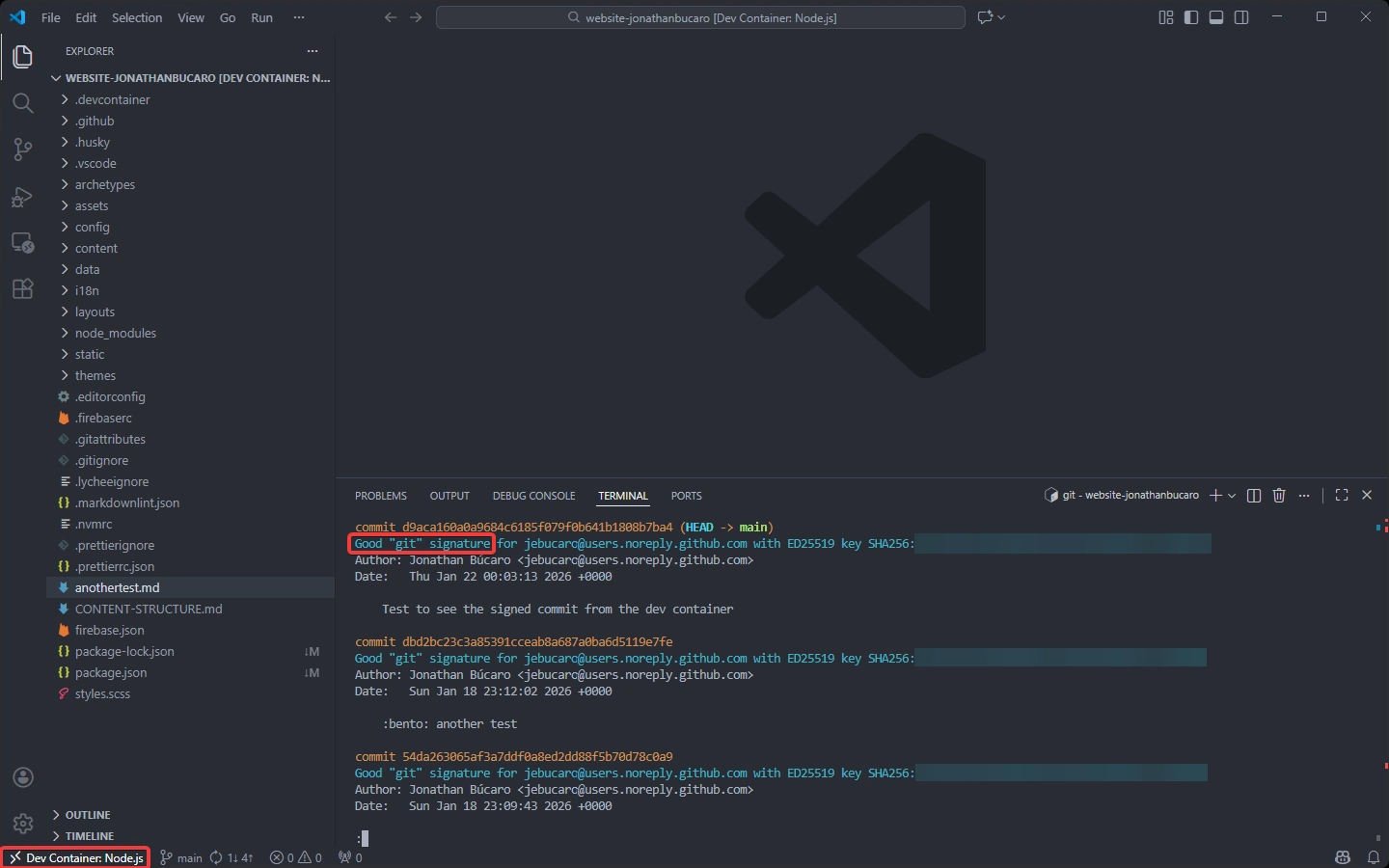
You should see: Good "git" signature for [email] with key ...
Photo by Bernd 📷 Dittrich ➡️ on Unsplash ➡️
Ispired by Marius Boden article Elevate Your Git Security: Signing GitHub Commits with 1Password in Windows WSL and Containers ➡️ on Xebia ➡️