
What I missed most after moving from Docker Desktop to Docker Engine was Docker’s MCP Gateway ➡️. I assumed it only shipped with Desktop, which I no longer use (I explained why in my 1Password post). And it was exactly what I wanted: my agents’ MCP servers running in isolated containers, without my GitHub token sitting in plain text in some config file. To my surprise, the gateway is an open source plugin for the Docker CLI, and Docker Engine inside WSL2 runs it fine.
A few guides I found had commands that didn’t work for me, so this is the setup that did. Claude Code talks to the gateway, and the gateway gets the GitHub token from 1Password through an account that can’t see the rest of my vaults. I tested it with Docker Engine 29.10 and docker mcp v0.44.3.
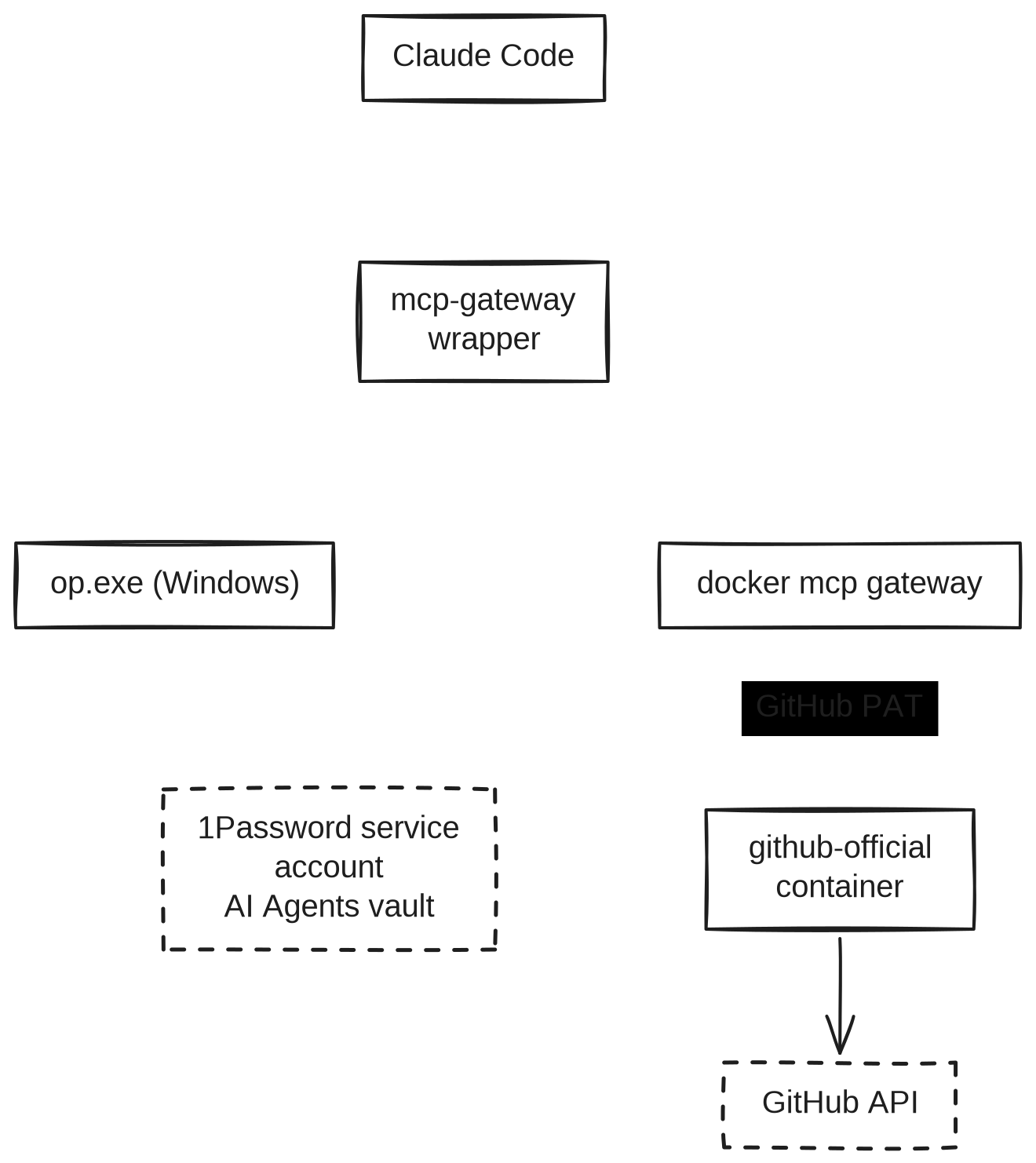
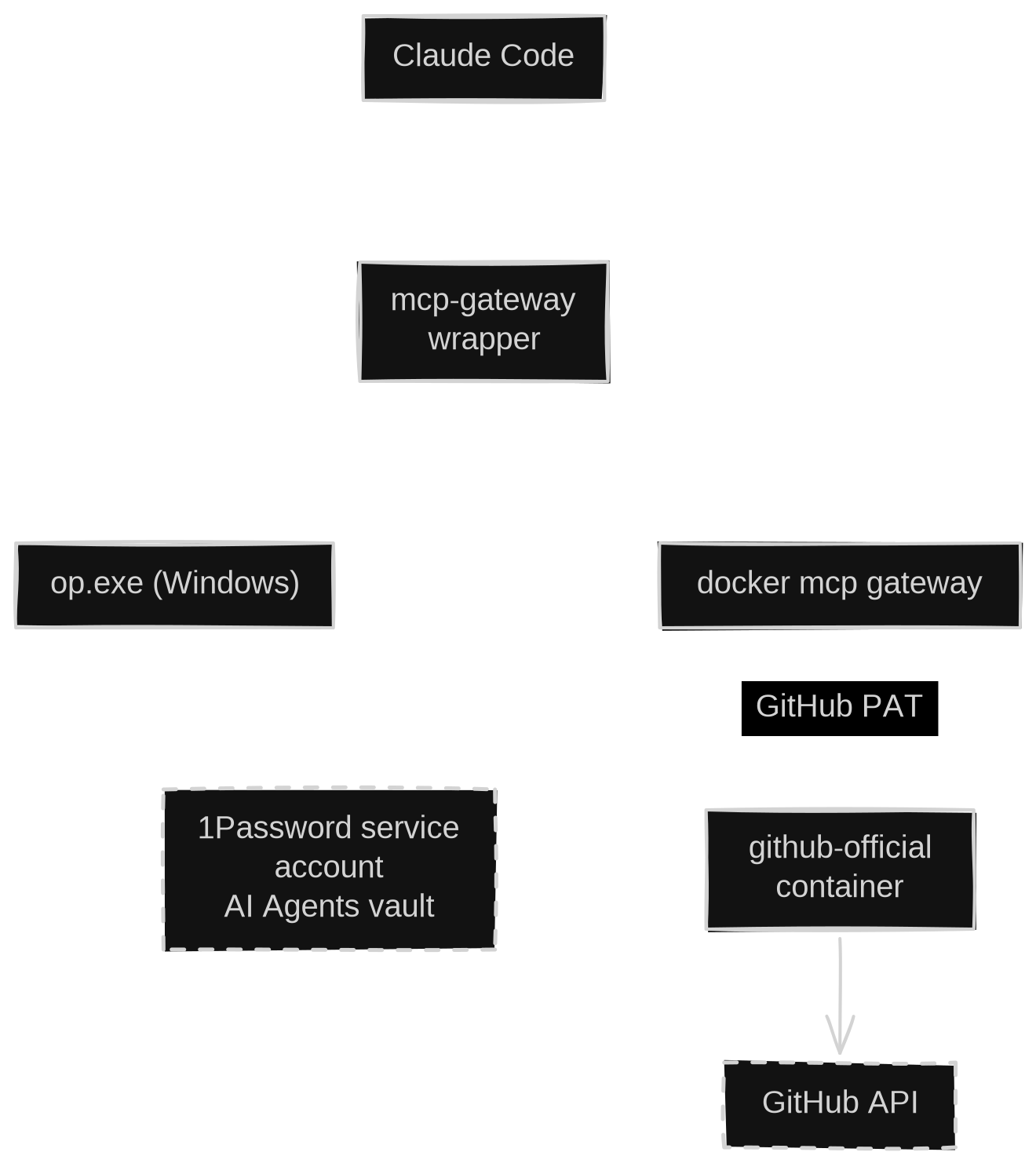
The wrapper reads the GitHub token from a vault only the service account can see, fails if the token is empty, and then starts the gateway.
What you need #
- Docker Engine 29 or later in your WSL2 distro.
- 1Password for Windows and its CLI, installed with the official guide ➡️, with the desktop app integration turned on.
- Claude Code ➡️ installed in WSL.
- A GitHub account where you can create a fine-grained personal access token.
Install the plugin #
The MCP Gateway plugin is a single binary that goes in the Docker CLI plugins folder:
mkdir -p ~/.docker/cli-plugins
curl -sL https://github.com/docker/mcp-gateway/releases/download/v0.44.3/docker-mcp-linux-amd64.tar.gz \
  | tar -xz -C ~/.docker/cli-plugins docker-mcp
docker mcp version
It should print v0.44.3. Check the releases page ➡️ for newer versions, and use linux-arm64 if you’re on ARM.
Pick a server to test with #
I tested with GitHub’s official server because it needs both a secret and network access. Docker’s catalog is an OCI image, so pull it and search for github-official (type /github-official in less):
docker mcp catalog pull mcp/docker-mcp-catalog
docker mcp catalog show mcp/docker-mcp-catalog | less
Some examples use a server called just github, but the catalog marks it as “GitHub (Archived)”. The github-official entry also lists the secret it expects, github.personal_access_token, which the container gets as GITHUB_PERSONAL_ACCESS_TOKEN.
Find op.exe from WSL #
The Linux 1Password CLI can’t talk to the 1Password app on Windows, so from WSL you call the Windows op.exe instead. It wasn’t on my WSL PATH, so I looked it up in PowerShell:
(Get-Command op.exe).SourceConvert that path to WSL format and keep it in a variable (run this in WSL):
OP="$(wslpath 'C:\Users\<you>\...\op.exe')"
"$OP" --version
echo "$OP"
Write down what the echo command prints, the wrapper needs it. Keep this terminal open for the next section, or set OP again in a new one.
Windows programs called from WSL end their output lines with \r\n, which is why you’ll see tr -d '\r' all over this post. They also can’t see your Linux environment variables unless you list them in WSLENV.
Keep the tokens away from your main vaults #
You could read the token with your normal op session, but the desktop app integration authorizes the CLI for your whole account. According to 1Password’s security model ➡️, that authorization carries over to sub-shells, so an agent running commands from that terminal could read anything in my account if it runs op.exe.
So I followed 1Password’s tutorial for AI agents ➡️ instead, which comes down to a vault just for the agent and a service account that can only read it. Their secure AI access ➡️ guide adds that the secret should only reach the process that needs it and stay out of the model and any config file. Here that process is the GitHub server’s container, and Claude Code never sees the token.
Every plan includes service accounts. On the 1Password, Families and Teams plans you get 1,000 reads per hour, and the wrapper uses one each time it starts.
- In the 1Password app, create a vault named AI Agents.
- Create a fine-grained personal access token ➡️ on GitHub with only the repositories and permissions the GitHub MCP server needs. The agent gets that same access through the server’s tools, so whatever you grant here is what the agent can do. Save it in that vault as an API Credential named GitHub PAT.
- Create the service account. This is the last time you use your normal
opsession:
"$OP" service-account create "Claude Code MCP Gateway" --vault "AI Agents:read_items" --expires-in 90dThe command shows the token (it starts with ops_) only once. Save it to a file only you can read, without leaving it in your shell history, and clear your terminal afterwards:
mkdir -p ~/.config/mcp-gateway
(umask 077; printf 'Token: '; read -rs t; printf '%s' "$t" > ~/.config/mcp-gateway/op-service-account-token; echo)
chmod 600 ~/.config/mcp-gateway/op-service-account-token
Now check what the service account can see:
OP_SERVICE_ACCOUNT_TOKEN="$(<~/.config/mcp-gateway/op-service-account-token)" \
WSLENV=OP_SERVICE_ACCOUNT_TOKEN/w "$OP" vault list </dev/nullID NAME
xxxxxxxxxxxxxxxxxxxxxxxxxx AI AgentsOnly AI Agents should show up.
WSLENV=..., the same command listed every vault in my account. op.exe never got the token and quietly fell back to the desktop app integration. The /w makes the variable pass from WSL to Windows only.ID NAME
xxxxxxxxxxxxxxxxxxxxxxxxxx Private
xxxxxxxxxxxxxxxxxxxxxxxxxx AI Agents
xxxxxxxxxxxxxxxxxxxxxxxxxx Family
xxxxxxxxxxxxxxxxxxxxxxxxxx SharedThe wrapper #
MCP clients start each server by running a command directly, without a shell, so the secret handling goes in a small script. I saved it as ~/.local/bin/mcp-gateway. Replace the op.exe path with yours and run chmod +x on it:
#!/usr/bin/env bash
# Docker MCP Gateway on WSL2 Docker Engine, no Docker Desktop.
set -euo pipefail

export DOCKER_MCP_IN_CONTAINER=1

OP="${MCP_OP_EXE:-/mnt/c/path/to/op.exe}"
VAULT="${MCP_OP_VAULT:-AI Agents}"
SA_TOKEN_FILE="${MCP_OP_SA_TOKEN_FILE:-$HOME/.config/mcp-gateway/op-service-account-token}"

# op.exe only sees WSL variables listed in WSLENV (/w = WSL to Windows).
OP_SERVICE_ACCOUNT_TOKEN="$(<"$SA_TOKEN_FILE")"
export OP_SERVICE_ACCOUNT_TOKEN
export WSLENV="${WSLENV:+$WSLENV:}OP_SERVICE_ACCOUNT_TOKEN/w"

# </dev/null: op.exe must not read the MCP client's stdin.
GITHUB_TOKEN="$("$OP" read "op://$VAULT/GitHub PAT/credential" </dev/null | tr -d '\r')"
if [[ -z $GITHUB_TOKEN ]]; then
  echo "mcp-gateway: could not read the GitHub token from 1Password" >&2
  exit 1
fi
unset OP_SERVICE_ACCOUNT_TOKEN

exec docker mcp gateway run \
  --servers "${MCP_SERVERS:-github-official}" \
  --secrets <(printf 'github.personal_access_token=%s\n' "$GITHUB_TOKEN") \
  "$@"
DOCKER_MCP_IN_CONTAINER=1 tells the gateway it isn’t running under Docker Desktop. Without it, gateway run starts no servers and lists 0 tools, also without an error.
The gateway reads --secrets once at startup, so a process substitution is enough and the GitHub token never touches the disk. The script also unsets the service account token before starting the gateway, which keeps it away from the gateway and its containers. I added the </dev/null after my first try with Claude Code hung for 30 seconds and gave up, because op.exe was inheriting the stdin Claude Code uses to talk to the gateway and swallowed the first message.
I also skip --watch. <(...) is a pipe that looks like a file (something like /dev/fd/63), and it can only be read once. When --watch reloads the configuration, the gateway reads that path again, finds it empty and starts the servers without the token, again without a warning.
Docker’s docs configure servers through profiles (docker mcp gateway run --profile <name>), but they assume Docker Desktop. On Docker Engine, profiles read secrets from Docker’s Secrets Engine ➡️, which is still experimental there and needs D-Bus plus a keyring like GNOME Keyring. A WSL distro doesn’t ship either by default, so it crashes, and the gateway won’t take --secrets and --profile together anyway. That leaves --servers, which is what the wrapper uses.
You do lose the gateway’s dynamic tools (mcp-find, mcp-add, code-mode), which let the agent add servers from the catalog mid-conversation. I’m fine with that, I’d rather an agent holding my tokens stick to a fixed list.
| Configuration | Result | Why |
|---|---|---|
--servers + --secrets <(...) | What I use | The gateway reads the pipe once at startup, and that’s all it needs. No dynamic tools. |
--watch + --secrets <(...) | Avoid it | Each reload reads the pipe again, finds it empty and brings the servers back without the token. |
--profile + --secrets | Doesn’t work | The two flags can’t be combined. |
--profile + Secrets Engine | Not yet | Still experimental on Docker Engine. |
A dry run starts the server, lists its tools and exits:
mcp-gateway --dry-run --verbose 2>&1 | grep -E 'TOKEN|tools listed' - GITHUB_PERSONAL_ACCESS_TOKEN: gith****
- Running ghcr.io/github/github-mcp-server with [run --rm -i --init --security-opt no-new-privileges --cpus 1 --memory 2Gb --pull never ... -e GITHUB_PERSONAL_ACCESS_TOKEN]
> 46 tools listed in 694.010041msIf you don’t see the masked gith****, the token didn’t reach the container.
Connect Claude Code #
claude mcp add --scope user MCP_DOCKER -- mcp-gateway
claude mcp listMCP_DOCKER: mcp-gateway - ✔ ConnectedRestart Claude Code and the GitHub tools show up under /mcp.
Add other servers from the catalog #
The catalog has more than 300 servers. These two commands list them and show what one needs:
docker mcp catalog server ls mcp/docker-mcp-catalog
docker mcp catalog server inspect mcp/docker-mcp-catalog brave | less
The secrets field in the inspect output tells you which secrets the server expects. With or without secrets, adding a server means editing the wrapper.
If the server’s container doesn’t need a secret, just add it to the --servers default, separated by a comma. I tried it with DuckDuckGo’s search server:
--servers "${MCP_SERVERS:-github-official,duckduckgo}" \If it does, save the credential in the AI Agents vault first. Then read it with op.exe after the GitHub token check, and add one line per secret to --secrets. For Brave Search, which expects brave.api_key, the diff looks like this:
 GITHUB_TOKEN="$("$OP" read "op://$VAULT/GitHub PAT/credential" </dev/null | tr -d '\r')"
 if [[ -z $GITHUB_TOKEN ]]; then
   echo "mcp-gateway: could not read the GitHub token from 1Password" >&2
   exit 1
 fi
+BRAVE_KEY="$("$OP" read "op://$VAULT/Brave Search/credential" </dev/null | tr -d '\r')"
+if [[ -z $BRAVE_KEY ]]; then
+  echo "mcp-gateway: could not read the Brave API key from 1Password" >&2
+  exit 1
+fi
 unset OP_SERVICE_ACCOUNT_TOKEN

 exec docker mcp gateway run \
-  --servers "${MCP_SERVERS:-github-official}" \
-  --secrets <(printf 'github.personal_access_token=%s\n' "$GITHUB_TOKEN") \
+  --servers "${MCP_SERVERS:-github-official,brave}" \
+  --secrets <(printf 'github.personal_access_token=%s\nbrave.api_key=%s\n' "$GITHUB_TOKEN" "$BRAVE_KEY") \
   "$@"
Run mcp-gateway --dry-run --verbose again and you should see BRAVE_API_KEY masked like the GitHub token. Then restart Claude Code to pick up the new servers.
What this protects and what it doesn’t #
The GitHub server runs with no-new-privileges. The token is passed by name (-e GITHUB_PERSONAL_ACCESS_TOKEN), so it doesn’t show up in the process list, and --block-secrets (on by default) blocks secrets in tool calls and responses. The token stays in memory and inside the container, so there’s no copy in Claude Code’s config, my dotfiles or a .env file.
Anything running as my user can read the service account token file, Claude Code included. Claude Code can also run docker, and anyone with access to the Docker socket can docker inspect the container and read the GitHub token. op.exe with the desktop integration is still there too, guarded only by 1Password’s approval prompt. Once the service account works, you can turn off Integrate with 1Password CLI in Settings > Developer if nothing else depends on it.
If the agent reads an issue or README with hidden instructions (prompt injection), it can call the GitHub tools with whatever the token allows, without ever seeing the token.
| Layer | What it limits | What it still allows |
|---|---|---|
| AI Agents vault + service account | The agent can only read the items in that vault | Any process running as my user can read the token file |
| Fine-grained GitHub PAT | Which repositories and operations the token has | The agent can use everything the token does allow |
| Server container | The server image can’t read my files | The container has internet access |
no-new-privileges, CPU and memory limits | Privilege escalation and resource use inside the container | Claude Code itself runs without any of these limits |
--block-secrets | Secrets showing up in tool calls and responses | docker inspect on the container shows the token |
--tools and read-only mode | Which GitHub tools the agent can call | A prompt injection can still use the allowed tools |
If something leaks, what’s exposed is a fine-grained token that expires and read access to a vault that only holds the agent’s tokens. The token’s permissions set the ceiling, and you can lower it with the gateway’s --tools flag or the GitHub server’s read-only mode.
The service account lasts 90 days and the GitHub tokens last as long as you set, so give them a short expiry and rotate them now and then.
To isolate the agent itself there’s Docker Sandboxes ➡️, and 1Password’s Credential Broker ➡️ looks like a way to drop the service account token entirely. I haven’t tried either yet. Claude Code also has its own sandbox ➡️ for the commands it runs through Bash (bubblewrap on WSL2). It won’t break this setup, because MCP servers run outside it. It’s off by default, though, and even with it on, Bash can still read the token file until you add its path to sandbox.filesystem.denyRead.
Photo by Nikola Knezevic ➡️ on Unsplash ➡️